
YouTube
v1.0.0.1This application turns your car radio into a small media centre: search and enjoy YouTube videos and music on the screen of the LG LAN5020EHTL (GEN2) infotainment systems installed in some European Hyundai and Kia models, such as the Hyundai Tucson, Santa Fe, 2016 Kia Sportage, Vera, and Sorento. Stream them instantly, follow live broadcasts and enjoy your own library of videos and music on a USB drive, even with no connection.
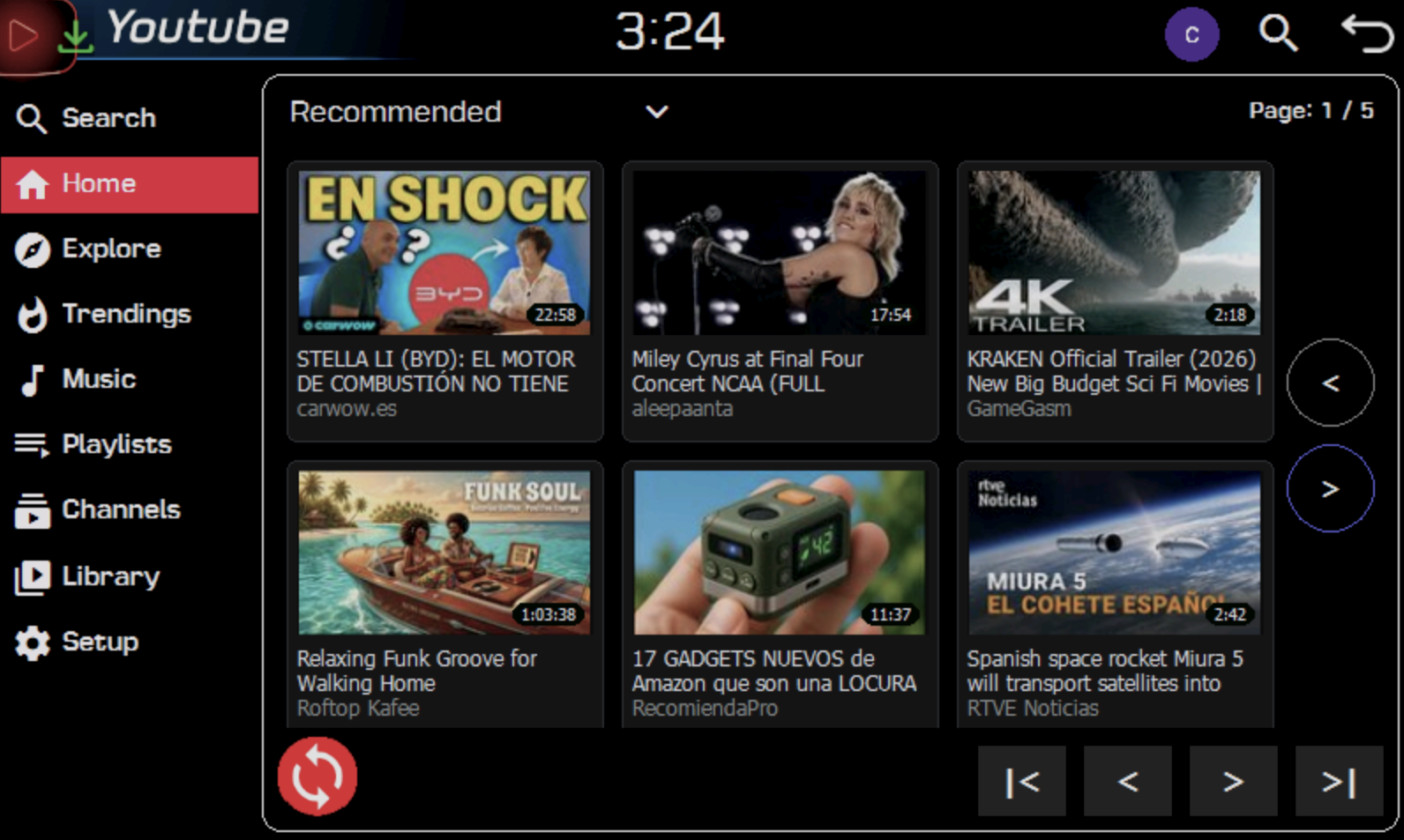
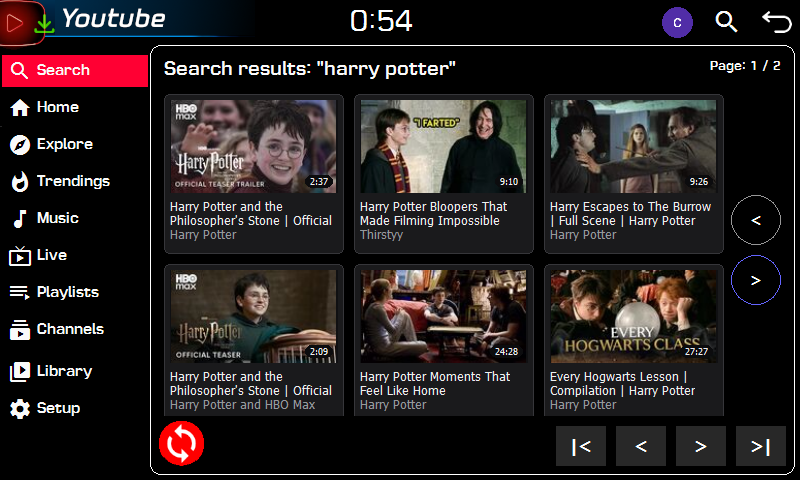
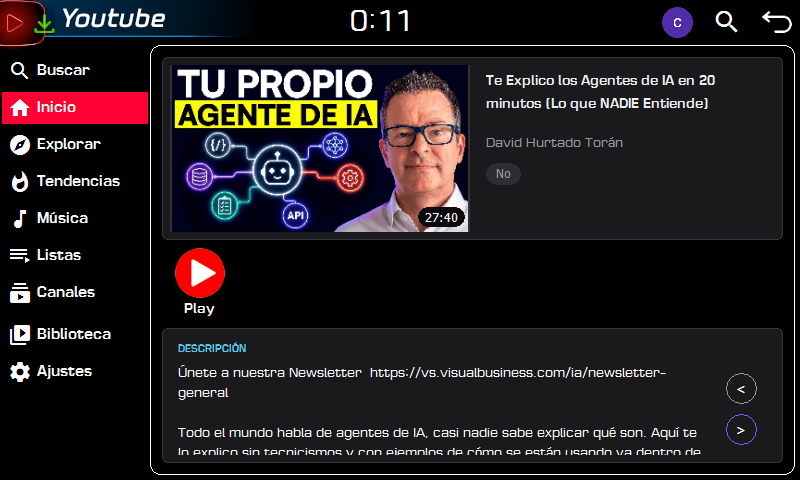
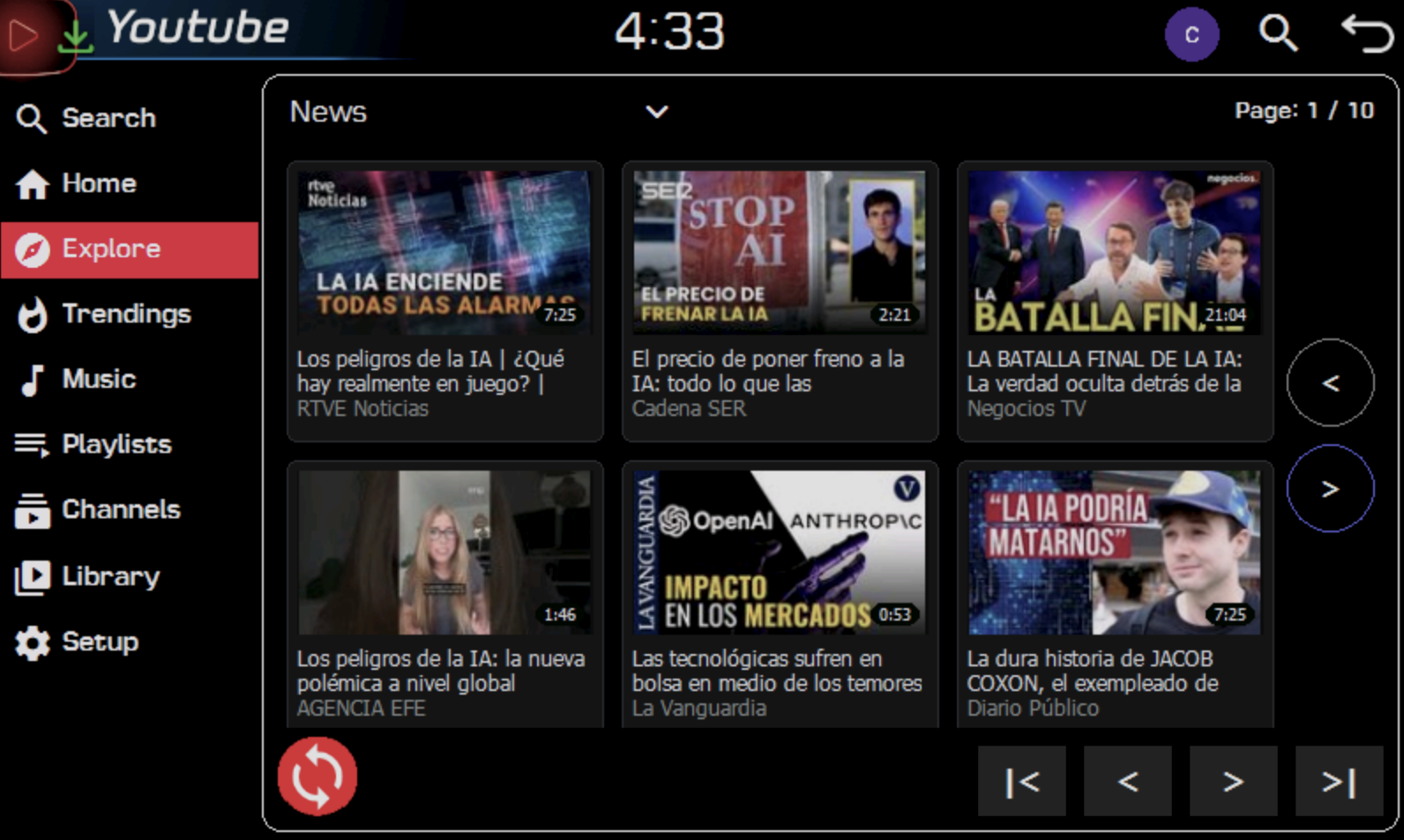
What you can do
- SearchFind any YouTube video by typing a few words.
- StreamPlay any video instantly, in a few seconds, using no storage space and with no length limit.
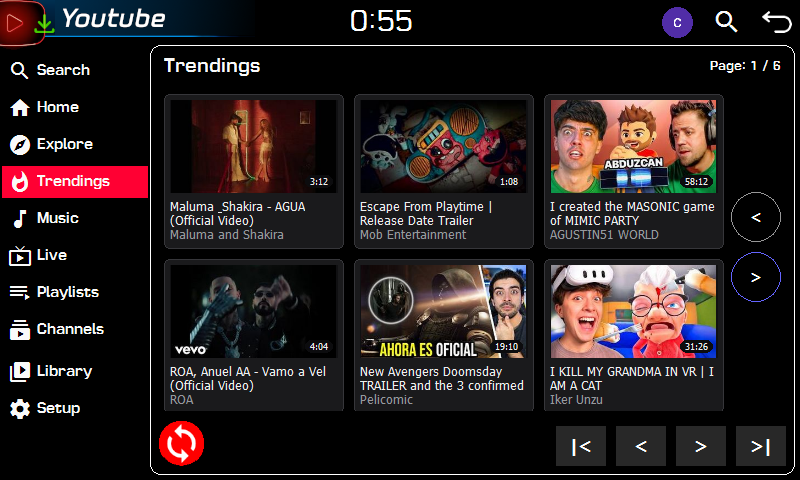
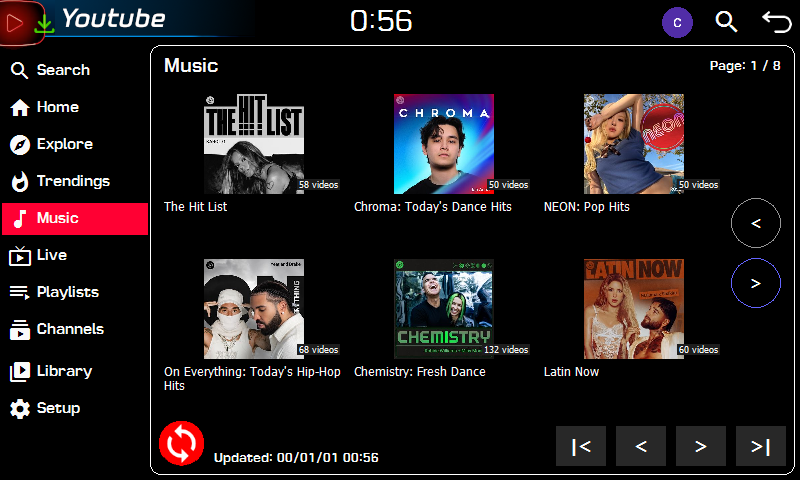
- DiscoverWhat is most watched in your country, plus sports, news, gaming, learning, podcasts and music sections.
- LiveNews, matches and tournaments being broadcast right now, with a picture that adapts itself to the car's coverage.
- Your libraryEnjoy the videos and music on your USB drive with no connection and no data usage, one by one or as a full-screen playlist.
- Organise your collectionSort it, change titles and authors, choose the cover picture or delete what you no longer want.
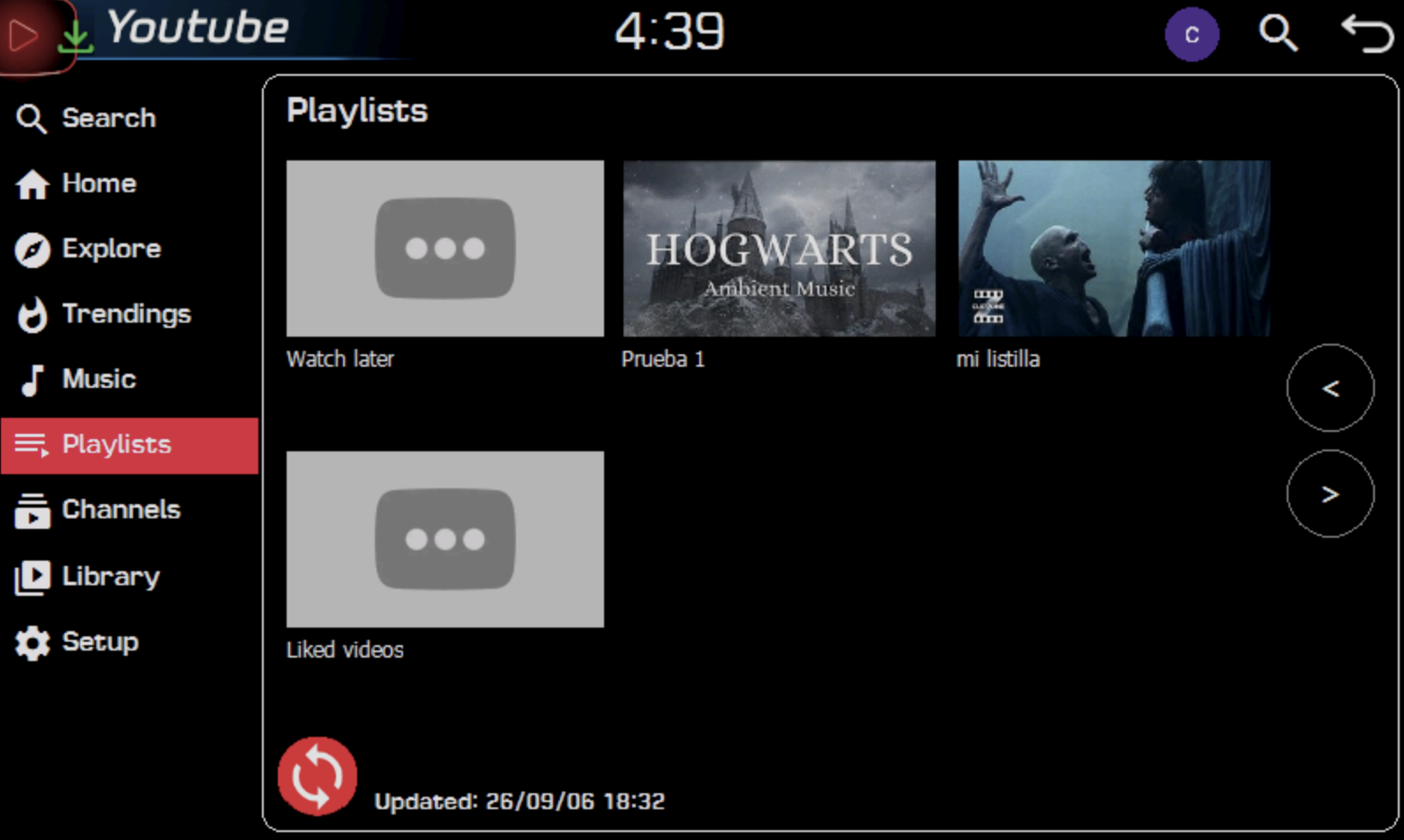
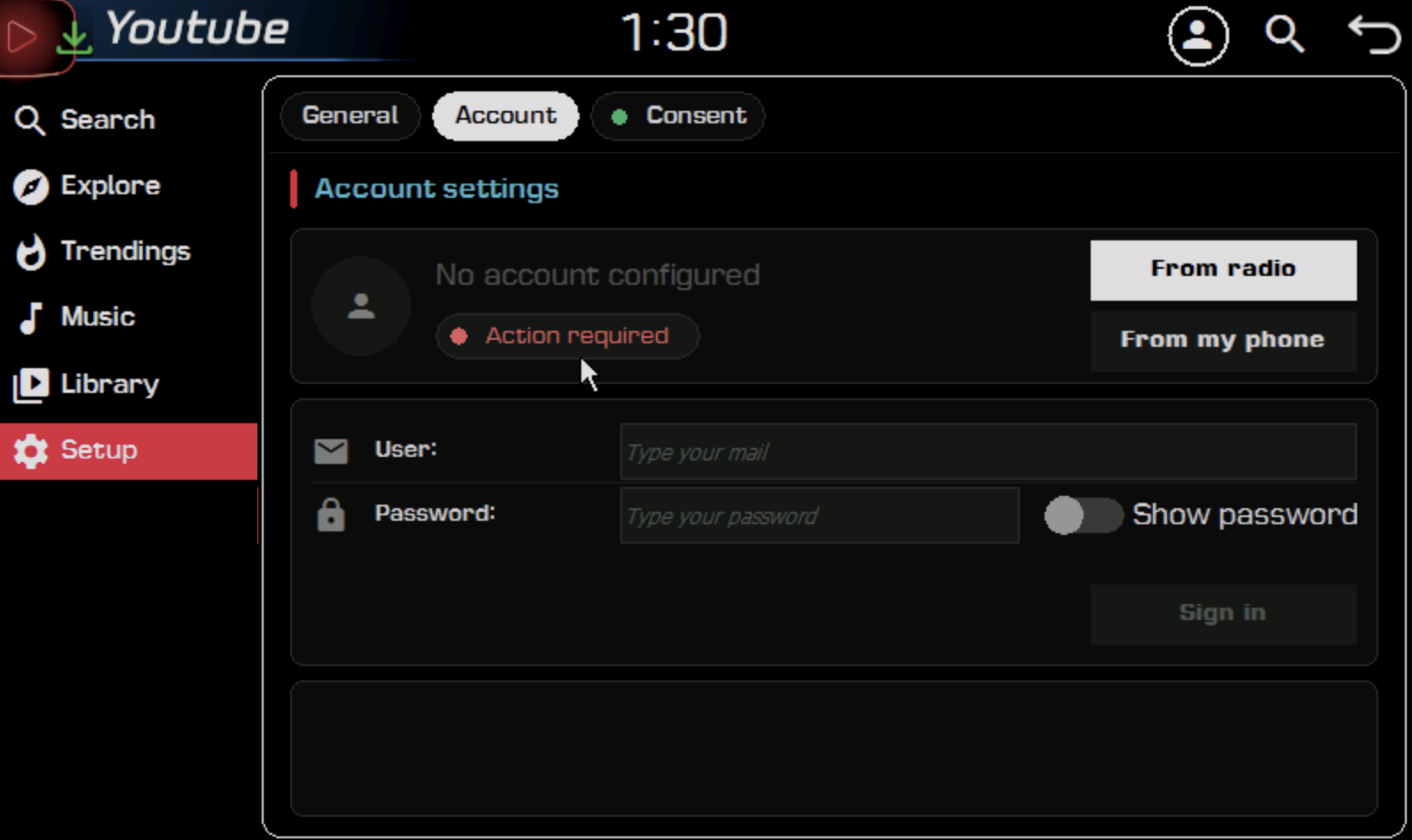
- Your YouTube accountOptionally, sign in from the radio or by scanning a QR code with your phone, and see your recommendations, your subscriptions, your history and your playlists, private ones included.
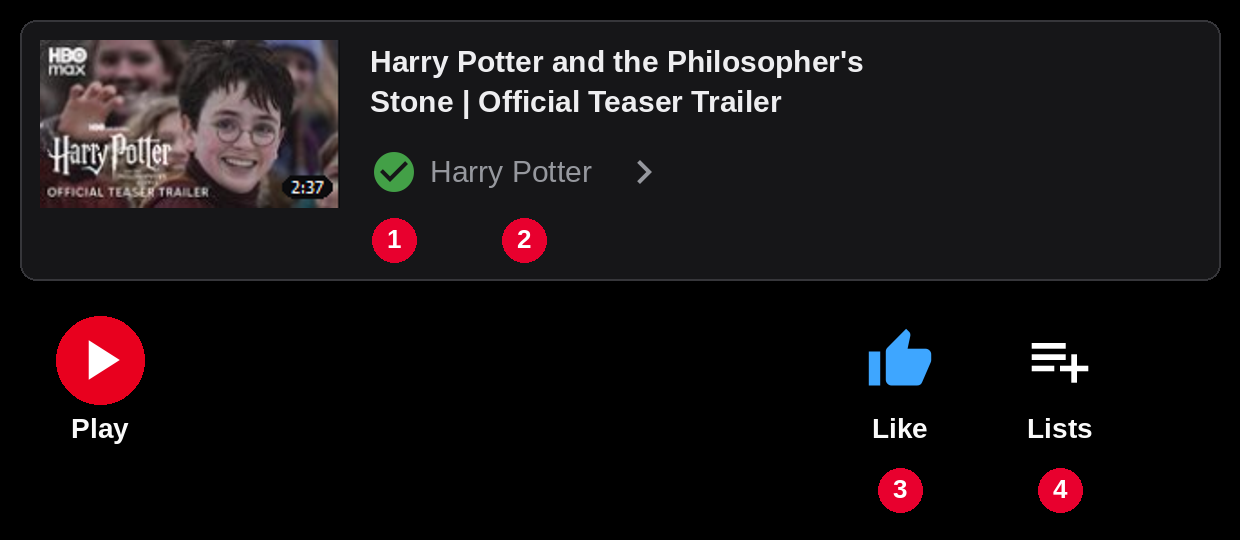
- Your YouTube, from the car tooOnce signed in, subscribe to a channel or unsubscribe, "Like" a video and save it to your YouTube playlists, just as on your phone.
- Your own listsMake lists out of the videos and music on your USB drive, for every trip and every occasion. They live on the USB drive itself and play in a row.
What's new
- Channels, likes and playlistsNext to the channel name, a sign tells you whether you are subscribed: tap it to subscribe or unsubscribe. The video page also has "Like" and "Lists".
- Whole YouTube playlistsPlaylists and mixes found in the listings open as playlists, and "Play all" plays them in a row, moving on to the next video by itself.
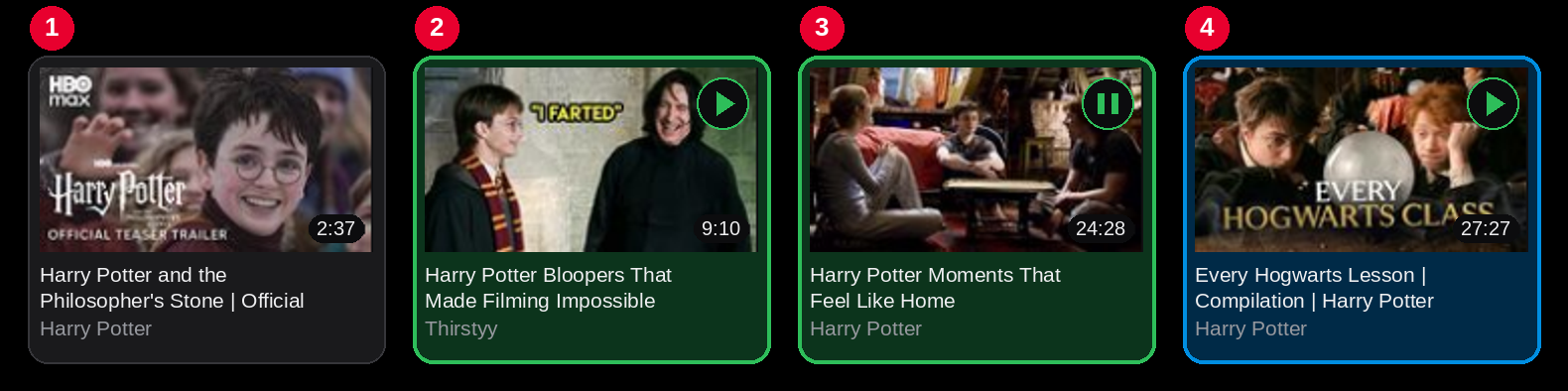
- What is playingThe card of whatever is playing turns green in every listing, with a ▶ in its corner, even with the player hidden.
- Search with less typingYour last ten searches and YouTube's suggestions appear under the box as you type.
- History and podcastsYour history in "Home" and a podcasts section in "Explore".
- Easier with a fingerTurn pages by swiping, taller rows in the menus and a mark on whatever you are pressing. And on the first run, the country is chosen by itself from the car's GPS.
How it works
Press "Play" on any video page and the radio receives it straight from YouTube while you watch. It starts in a few seconds, uses no space on the USB drive and has no length limit. Tap it to watch full screen, and tap it again to go back.
The radio can't do this on its own: the app works as a team with a support server on the internet, which finds out where each video is and prepares the listings so they open instantly. While a video plays you can keep using the app, or even hide it and use the map or the radio.
And whatever you already have on your USB drive, your videos and your music, plays with no connection from your library.
Requirements
Mind your data usage. Streaming a video uses data for as long as it plays.
If the radio connects to the internet through your phone, a mobile plan with unlimited data is recommended.
 BootLoaderYou need to have an SD card with BootLoader.
 CorePlayerCorePlayer 1.0.5.4 must be installed to play videos and music, both streamed and from the USB drive.
- Internet connectionNeeded to search and stream. Whatever is already in your library plays with no connection.
- A USB drive with free spaceThis is where your library of videos and music lives. Do not use the radio's SD card for this.
 A YouTube account (optional)Without it you can search, explore and watch. With it you will also see your recommendations, subscriptions and playlists.
Install
The application is available in the BootLoader app store, so you can install it directly from there. The installation package is also available on this page. You can copy the package to your SD card and install it from BootLoader by clicking the "Install Package" icon in the app store.
The app speaks the same language as your radio, with nothing to configure. It is available in Spanish, English, French, German, Italian, Portuguese, Dutch, Danish, Swedish, Polish, Czech, Slovenian, Russian, Turkish and Korean.
Quick guide
- Connect and open. Make sure the radio has internet and your USB drive is plugged in. Open YouTube from the applications menu.
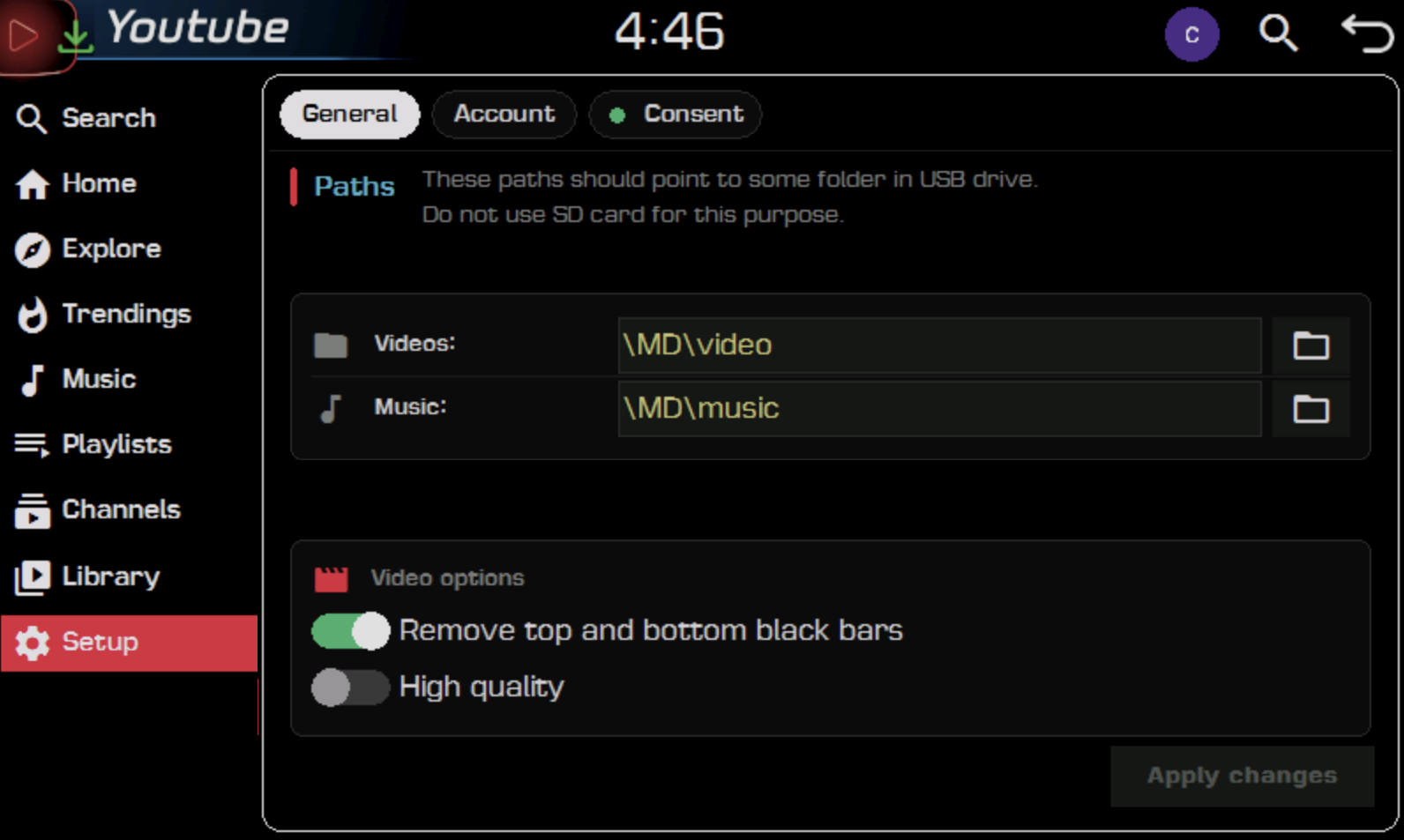
- Check the settings. Go to "Setup", "General" tab, and check that the videos and music folders point to your USB drive. Press "Apply changes".
- Search and watch. Tap the magnifying glass, type what you are looking for and pick a video. On its page, press "Play" and it will start playing in a few seconds.
- Hide it without closing it. Tap the logo to hide the app and use the map or the radio. To come back, tap the floating icon.
The basics, in short
- The screenA bar at the top, a menu on the left and, in the centre, whatever you are viewing. Tapping the logo hides the app and leaves a floating icon that brings it back with a tap; you can drag it wherever you like.
- Searching for videosTap the magnifying glass, type with the on-screen keyboard and tap the magnifying glass again. Under the box you have your recent searches and YouTube's suggestions; hold your finger on a recent one to remove it. Your latest results remain available in the "Search" section of the menu.
- Trendings, Explore and MusicPopular videos in your country (chosen by itself from the GPS on the first run; you can change it in "Setup", "General" tab), themed sections, podcasts and music playlists, with no account needed.
- LiveWhat is being broadcast right now, by category. Each card tells you how many people are watching, and the picture adapts itself to the coverage instead of stalling.
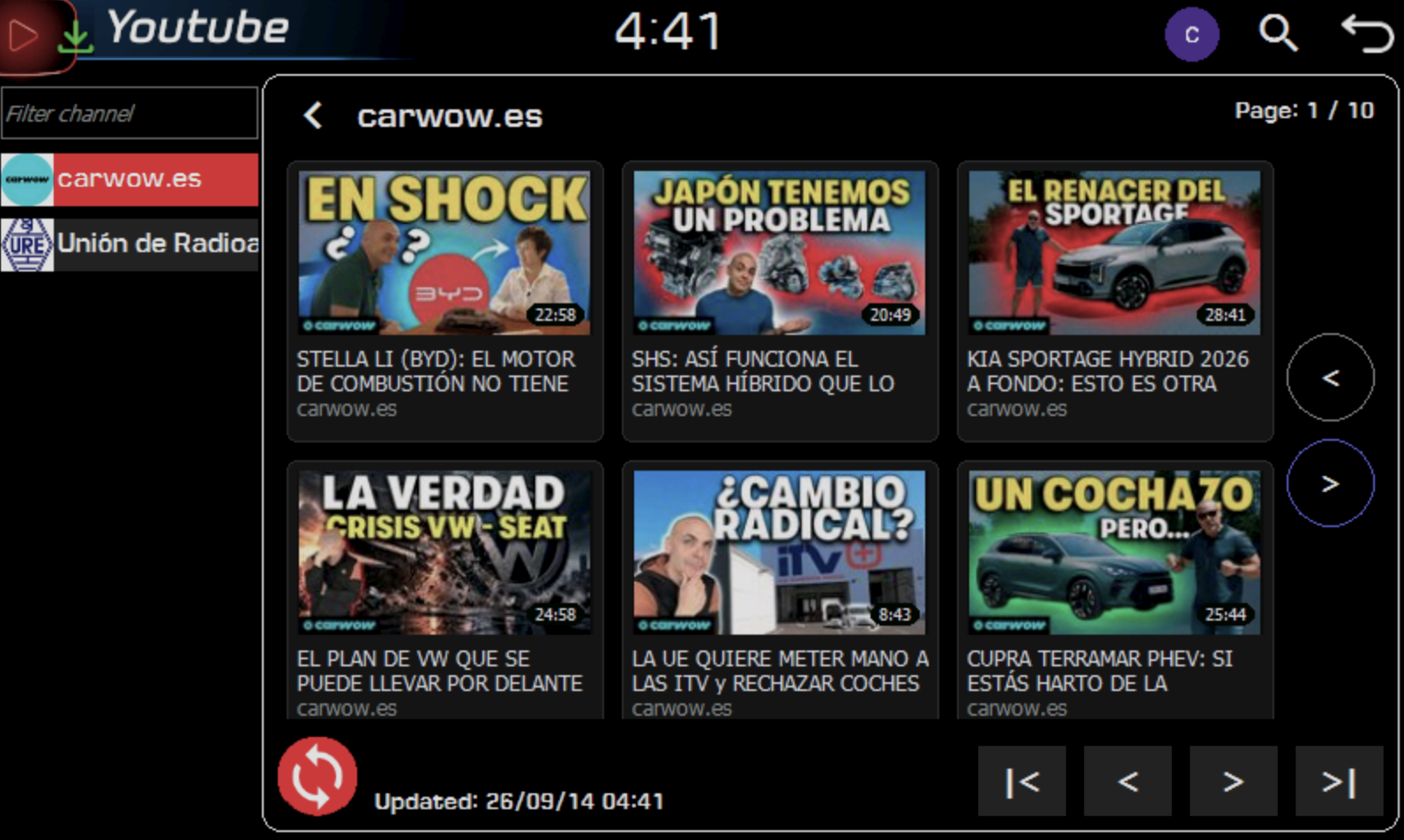
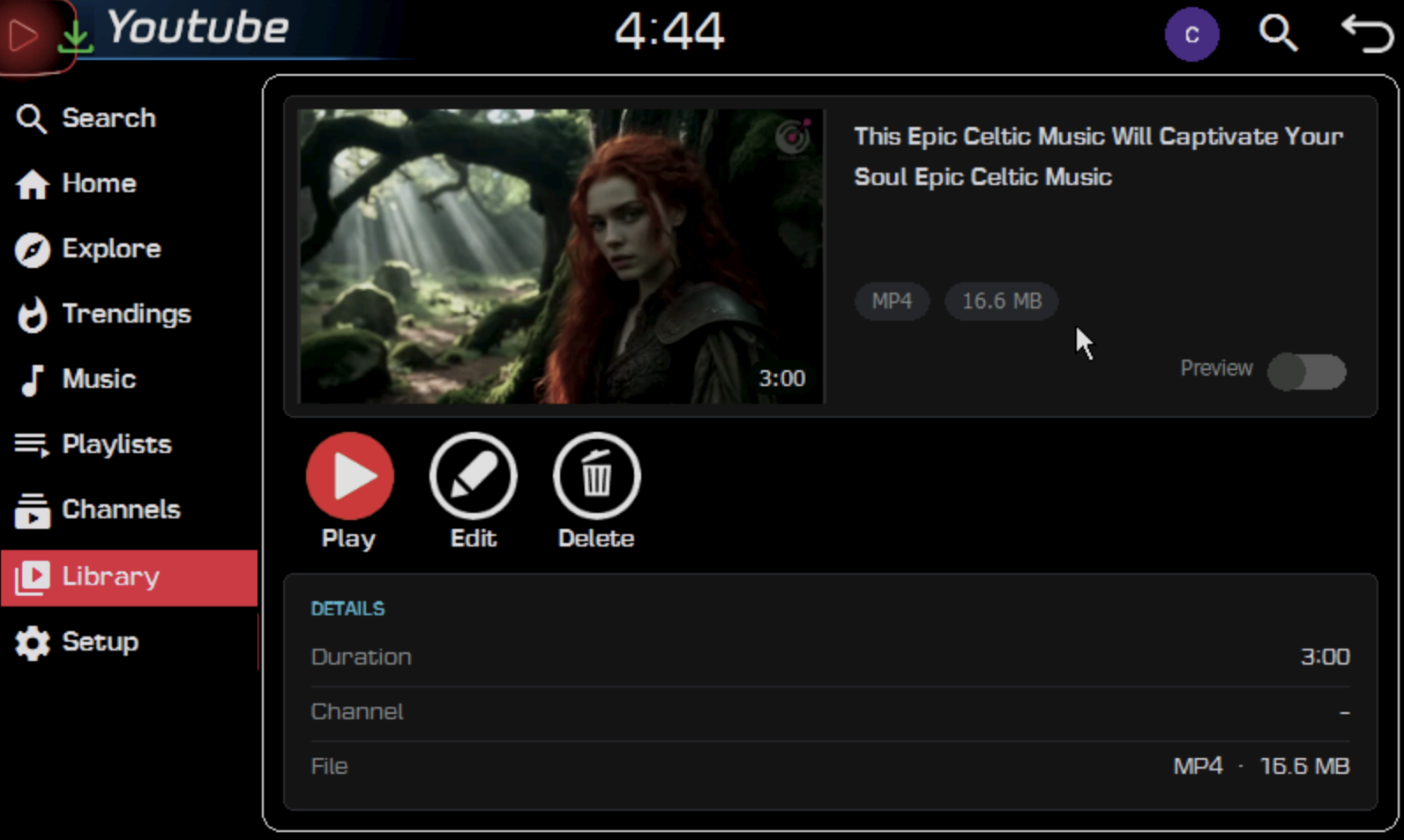
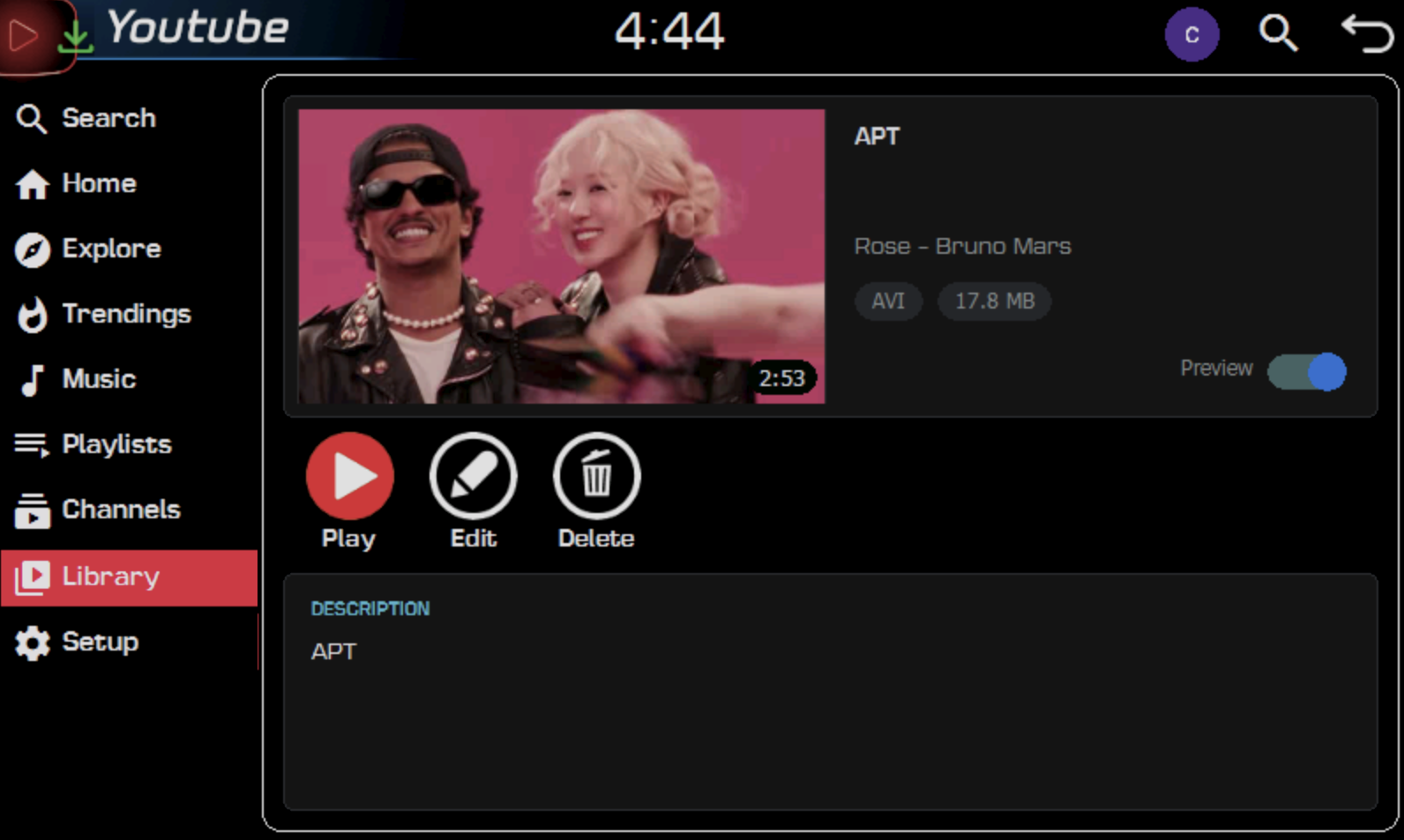
- The video pageShows the picture, title, duration, channel and description. Press "Play" and the video starts in a few seconds in the page's frame, with the time played underneath; if you leave the page, it keeps playing. Tap the channel name to see its videos, or the sign to its left to subscribe.
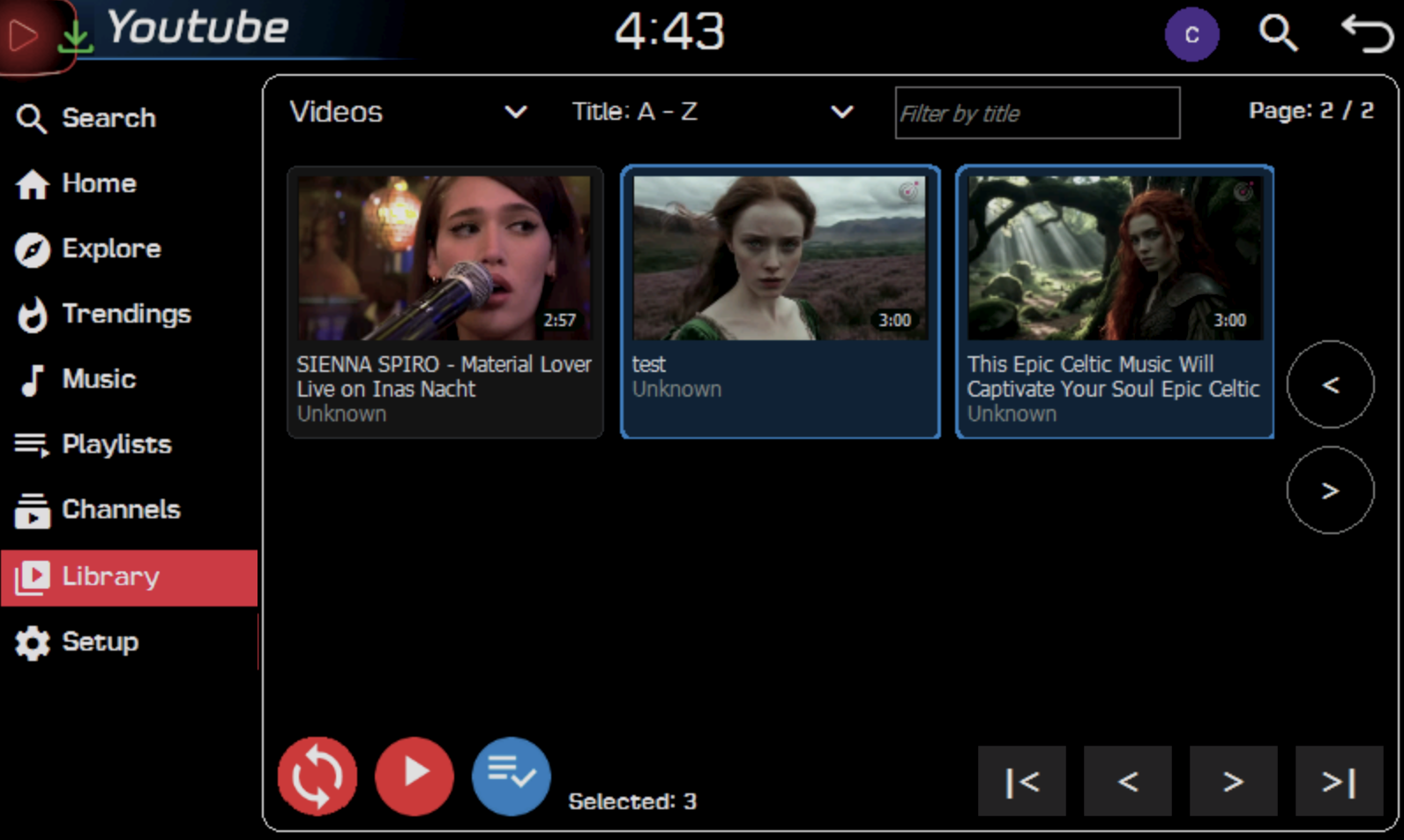
- Your libraryVideos and music sorted by title, date or duration. Press and hold an item to edit or delete it, or pick several videos and play them in a row in full screen, skipping between them with the steering wheel buttons. What you pick can become your own lists, which appear in the first drop-down.
- Editing the informationChange a video's title, author and description, and choose its cover picture by moving the time bar. For MP3 songs, the title, artist and cover art.
- YouTube accountGive your consent in the "Consent" tab and sign in from "Account", typing your email and password or scanning the QR code with your phone. When the ring of the account button turns green, "Home", "Playlists" and "Channels" will appear.
Your safety comes first. Search and prepare your videos with the car stopped, and enjoy them only when you are parked. While driving, the road deserves your full attention.
Frequently asked questions
Yes, while you watch it, because the video arrives over the internet. What is on your USB drive plays without using any.
No. Everything in your library plays directly from the USB drive.
Yes. The "Live" section shows what is being broadcast right now: news, sports and gaming. It plays a few seconds behind the actual broadcast so it doesn't cut out when coverage drops, and the picture quality adapts itself to the connection.
Yes. Tap the logo in the top left corner to hide the app; to come back, tap the floating icon. And if you close it with "Close", the video you are watching carries on in the radio's player.
Yes. In your library, press "Choose videos", mark the ones you want (or none, to play them all) and press "Play list". They play in full screen and you skip between them with the steering wheel buttons.
On your USB drive, in the folders you set in "Setup", "General" tab.
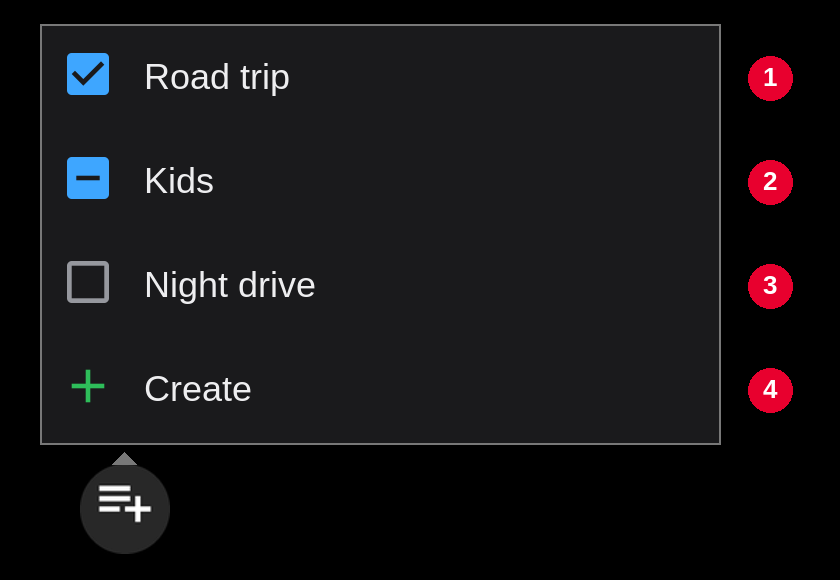
Yes. In your library, press "Choose videos", mark what you want and tap the lists button that appears next to it: there you pick a list or create a new one. They can mix videos and songs, and they are kept on the USB drive, so if you swap it for another one you will see the lists of the new one.
Yes, with your YouTube account signed in. On a video page, tap the sign next to the channel name to subscribe, and use the "Like" and "Lists" buttons. The changes are made on your account, just as on your phone.
By the colour: in any listing, the card of whatever is playing turns green, with a ▶ in its corner (or ‖ when paused).
User manual
The full manual explains every screen in detail, along with the most common error messages and how to solve them. Choose the language and download the manual in PDF.
